
Quoting EPOS used to mean a phone call, a spec sheet, three emails back and forth and a spreadsheet you’d rather nobody else saw. Our configurator cuts that down to a few minutes. You pick the hardware, we price it, and the quote lands in your inbox.
Here’s how it works, screen by screen. The configurator is for approved partners, so if you haven’t got a login yet, apply for a partner account first.
Step 1: Choose a system
Open the EPOS configurator. The whole HiStone range is laid out in groups: Windows EPOS, Android EPOS, box PCs, kitchen display systems and self-service kiosks. Click the one you want.
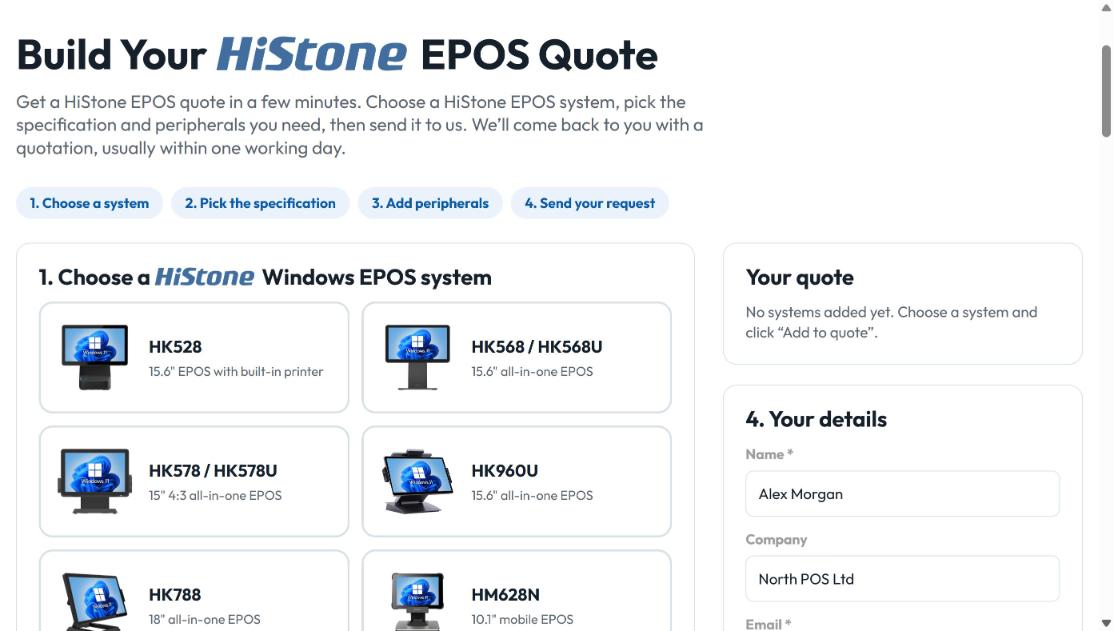
Not sure which model fits? The HK568 / HK568U is our most popular 15.6″ all-in-one. The HK566Q is the Android equivalent. If the customer has a small counter, have a look at the HK528 with its built-in printer.
Step 2: Pick the specification
Every terminal only shows the options it actually supports, so you can’t build something HiStone doesn’t make. Choose the operating system (Windows 11 LTSC, Windows 11 Pro, Linux or none), the processor, memory and storage. Then add a customer display, WiFi and built-in options such as an MSR card reader or fingerprint reader.
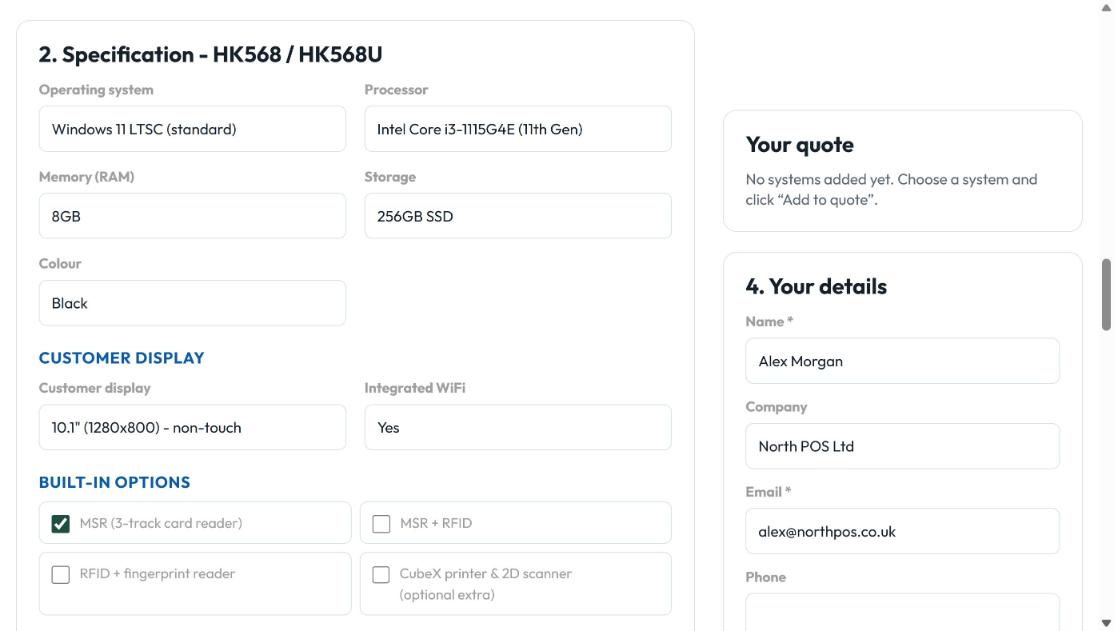
A few things worth knowing:
- The Celeron J6412 is fine for most hospitality and retail sites. Go for the i3 or i5 if the software is heavy or the customer runs a lot of reporting on the till.
- Windows 11 LTSC is our standard. It’s a long-term release, so it won’t be forced through feature updates in the middle of service.
- The CubeX printer and 2D scanner unit is available as an option on the HK568 / HK568U and HK566Q, and it comes as standard on the HK568MSC kiosk.
Step 3: Add peripherals and warranty
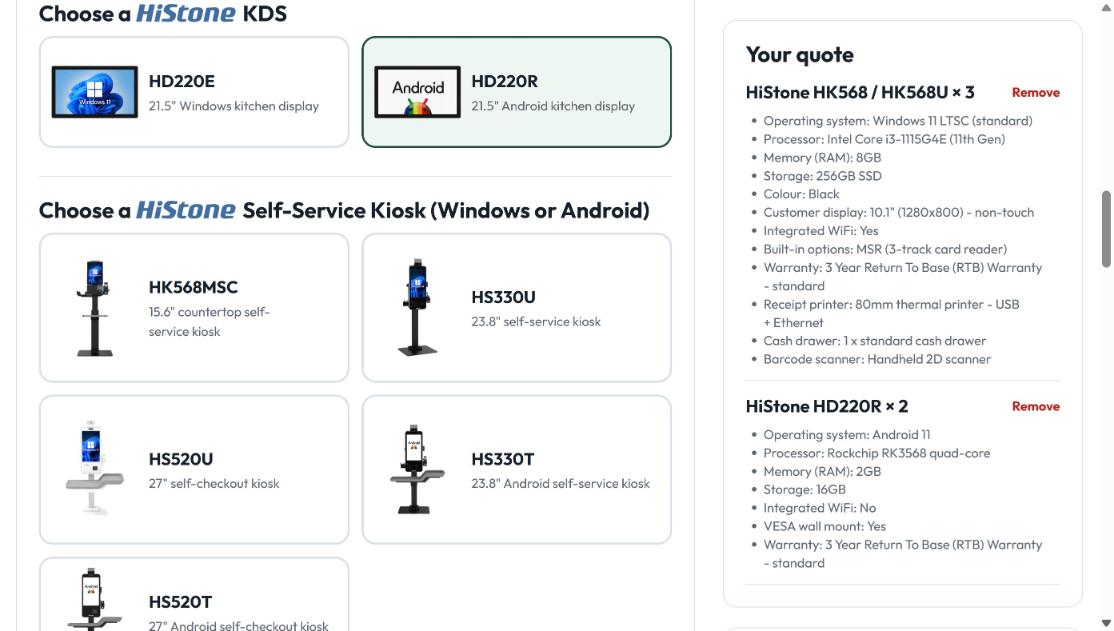
Next come receipt printers, cash drawers and barcode scanners. For kitchen screens you’ll see kitchen printers instead. Our all-in-one terminals come with a 3-year return-to-base warranty as standard, and you can upgrade to 3 years onsite.
Set the quantity and click Add to quote. Then do the same for the next item. You can mix models in one quote, for example three HK568 tills and two HD220R kitchen screens for a restaurant.
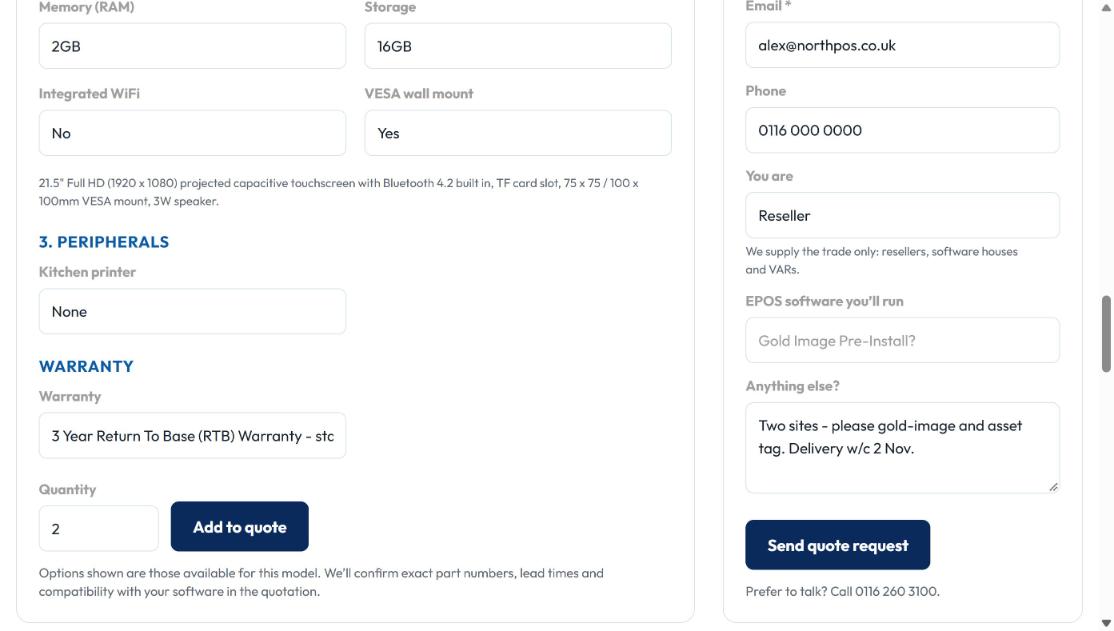
Step 4: Send it to us
Your name and company are filled in from your partner account. Tell us which EPOS software you’ll run, especially if you want us to gold-image it. Add anything else we should know, such as delivery dates, number of sites or asset tagging. Then hit Send quote request.
What comes back
Our team checks the spec, confirms part numbers and lead times and emails you a priced quotation as a PDF. Here’s what one looks like. The top line is the bare unit price times the quantity, and every upgrade or peripheral below it adds its own line with a running total, so you can see exactly where the money goes. The customer details are made up but the prices are real.
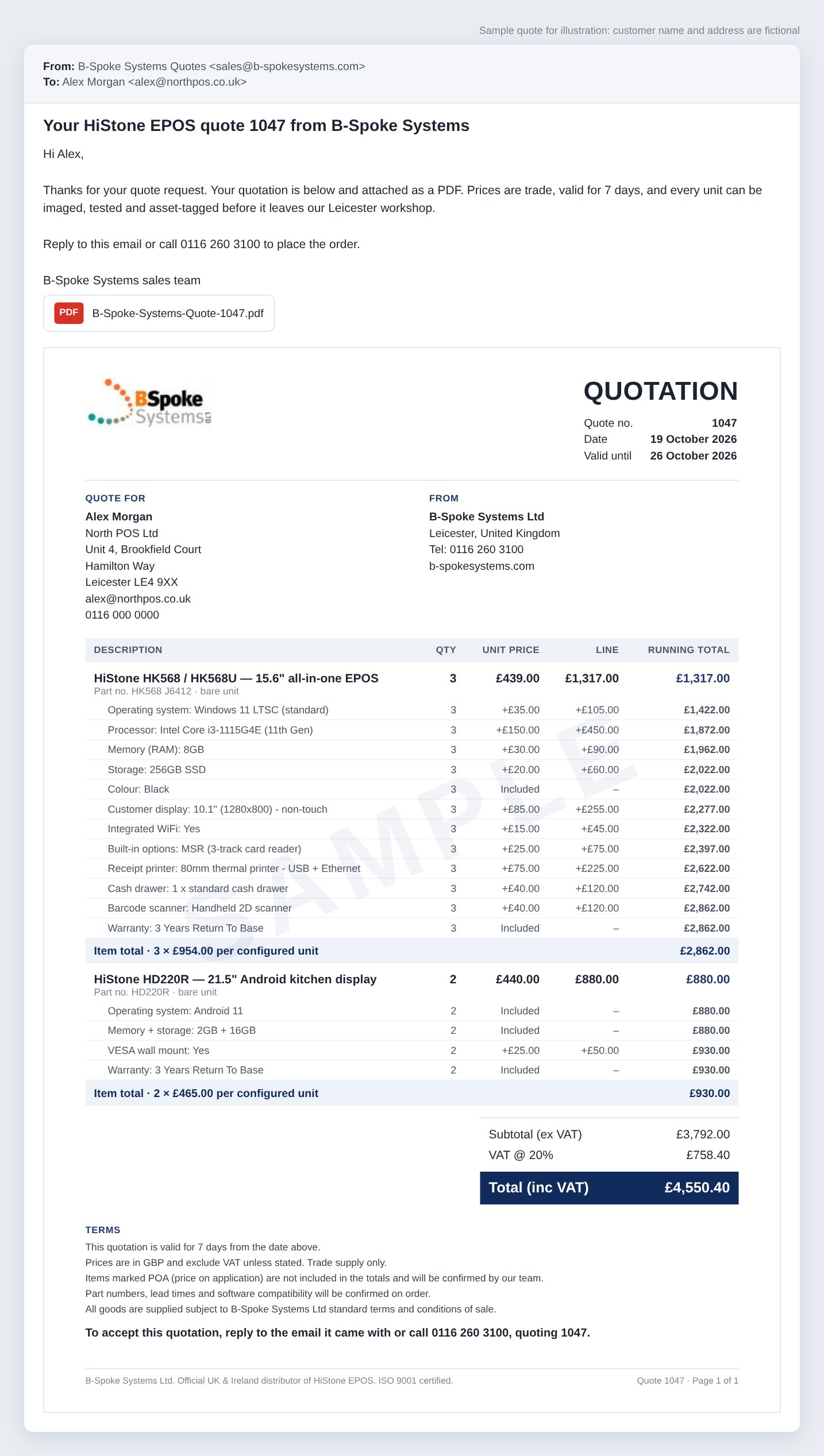
To accept it, reply to the email or call us on 0116 260 3100 with the quote number. That’s it.
Tips from our sales team
- Use the notes box. Delivery dates, opening day, site contacts. The more we know, the fewer phone calls later.
- Ask about project pricing. For multi-site rollouts and tenders, mention the volume and we’ll price accordingly.
Ready to try it? Log in and open the configurator, or apply for a partner account if you’re new to B-Spoke.